

For someone to complete the form, particularly offline, do they need to have a nest forms account or can they access through their email address/a code etc? #
Also asked as: Do responders have to be online or can they be offline? · Do responders need a NestForms account to complete a form? · Can someone fill out a form without creating an account? · Is a login required for responders? · How do responders access a form - account, email, or code? · Can forms be completed anonymously?
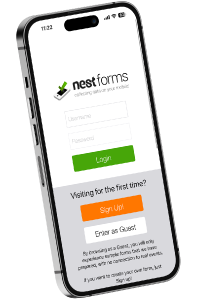
If a responder needs to complete a form offline, they must have a NestForms account and be logged into the NestForms mobile app (iOS or Android). Offline functionality is handled directly within the app, which is why login is required.
If you prefer no account or login, you can use Public Forms. Public Forms open in a normal web browser and can be accessed by anyone using a link. These forms are ideal for anonymous or open access scenarios.
Please note that Public Forms require an internet connection, as they run in the browser.
Public Forms can be shared in any convenient way, including:
• Email
• QR codes
• SMS / messaging
• Embedded links on websites
• Kiosk or tablet use
What Should I Do if GPS Is Not Working? #
Also asked as: I am having problems with GPS location data · How Do I Troubleshoot GPS Location Problems?
There are a couple of scenarios where GPS is not working or is unavailable:
1) The users switched the GPS on just now, and it can take several seconds to initiate before the GPS coordinates are available.
2) There is no connection or not a strong enough signal to obtain the GPS coordinates (e.g. inside buildings or remote locations).
There is not too much we can do in these situations. You might check the responder location, and how long they had GPS switched on for.
Learn more: GPS
Can I increase the font size in NestForms? #
The Font size in either the NestForms Android and iOS app is based on the device settings. So if you want to increase the font size, you can do this very easily on either mobile device.
See the help links below. When you update the device settings, the NestForms app will update the font size automatically.
For Apple devices
https://support.apple.com/en-us/HT202828
For Android devices
Learn more: Change font size on your iPhone, Increase or Decrease Font Size in Android device
How Do I View Finished Responses in the NestForms App? #
Also asked as: Display Finished Responses - history filter · Can I View Previously Completed Responses in the App? · Can I Change How Long Finished Responses Are Stored?
It's possible to review finished Responses in the app (by going to Responses and changing the filter).
Just go to the Responses tab, open the filter on the right top and choose status and tick Finished.
The finished responses are stored in the app for 14 days by default, you can change this in the app settings also.
Learn more: Filtering responses
Managing your device storage in the NestForms Mobile App #
If you're finding that the NestForms app is taking up a significant amount of storage on your mobile device, there are a few things you can check to help manage and reduce this usage:
1. Adjust the Auto-Delete Setting for Responses
- Go to the app Menu > Settings.
- Locate the Delete Responses: Delete after option.
- Set this to a reasonable timeframe (e.g. two weeks).
- Once adjusted, responses older than this period will be cleared automatically the next time the app is restarted.
2. Review and Clear Old Unfinished Responses
- Open the app Menu > Responses and scroll through the list of saved responses.
- If there are many older or unused unfinished responses, these can be manually deleted:
- On Android: Long press the response, then tap Delete.
- On iOS: Open the response, then tap Delete on the follow-up screen.
3. Still Experiencing Issues?
If adjusting settings and clearing old responses doesn't reduce the storage usage, please send us diagnostic information from the responder's device. Our support team will review the data and confirm whether anything unusual is contributing to excessive storage usage.
Important: Avoid uninstalling and reinstalling the app as doing this will remove any unsynced data, and we will not be in a position to investigate further.
Learn more: reporting an error, file storage limits, deleting responses
Can NestForms work in both online and offline mode? #
Also asked as: Can NestForms work offline? · Does NestForms need an internet connection? · Can I use NestForms without WiFi? · What happens if I lose signal while using NestForms? · Does the app work without internet? · Can forms still be completed if I'm offline? · Can NestForms work offline? · Can my responders work offline? · Does Nestforms work with no internet? · Can responders carry on working without a connection?
Yes, NestForms works in both online and offline mode.
In the beginning you need to create a form online and then when the app is opened by a responder it will automatically sync to that form.
NestForms operates as an Android and iOS App on both tablets and mobiles. The apps can work in both online and offline mode, online mode will sync your data while you work.
When you're online, your data syncs automatically as you complete forms.
If you lose connection, the app continues working offline and stores your data securely on the device.
Offline mode will allow your remote users to sync their collected data with your account, once they have the opportunity to reconnect.
Once you're back online, everything syncs automatically in the background.
Learn more: Introduction-to-NestForms, Getting started, Data Collection
Can offline mode be selected? #
Also asked as: Can I switch offline mode on or off? · Is there a toggle for offline mode? · Can I manually enable offline mode? · Do I need to turn on offline mode? · Can I choose when the app goes offline? · Is offline mode automatic or do I control it?
No, Offline mode isn't something you switch on or off manually.
NestForms works automatically in offline mode whenever there's no internet connection.
If your device is online, it will sync data in real time.
If your connection drops, the app continues working offline and syncs later when you're back online.
So there's no toggle as such-everything happens automatically in the background.
Learn more: Data Collection