

Collecting Images - Video introduction #
The Images component provides you with a simple way to collect images from your colleagues.
Single or multiple images can be added.
This is how the component looks when you add it to your form.
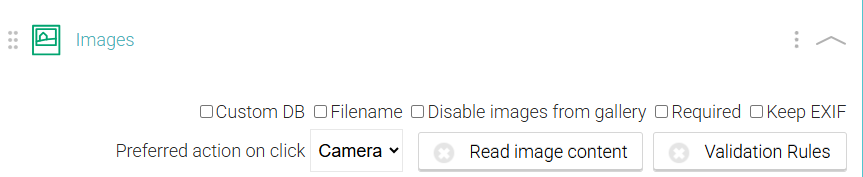
When you click into Images, you can then change the title heading to make it more relevant to your form. For example, you might wish to collect images for a Health and Safety Audit, a Project Completion Report or Snag List Form.
You will see various checkboxes within the component:
Custom DB - Allows you to prefill your own internal data into your NestForms responses. You can find out more on the Custom DB help page.
Filename - Allows you to change the filename of the image. Once selected the ‘Filename’ field will appear and when you click into this you will see a prefilled dropdown menu for the questions components within your form. You can select a component from the dropdown or enter free text if you require.
Disable images from the Gallery - This can be used to ensure the responder is taking an up to date image as opposed to choosing a previous image from their gallery.
Required - The ‘Required’ checkbox lets the responder know that the question must be answered. If the Responder leaves the question without an answer, and presses Finish, an error appears and the response cannot be finished until the question is answered.
Keep EXIF - EXIF (Exchangeable Image File Format) information records specific technical details within the image that can be considered as private, potential GPS locations, Dates and times of images, camera type, flash, zoom etc. By default we remove this technical information from the images.
If you wish to retain the image technical details, then you should check this box.
Preferred action on click - This lets you choose what should happen when the user clicks to ‘Add a Photo’ in the app. The options are:
- Camera (this is the default setting) - open the camera for the user to be able to take a picture.
- Gallery - This setting allows the Responder to select an image straight from the device gallery.
- Popup - You can provide a popup prompting the responder to take an image with the device camera or select an image from the gallery.
In any case, if the user long touches the 'Add a Photo' button the menu with the options will appear.
Validation Rules - You can specify rules for how text is to be presented in the form responses. You can find out more on the Regular Expression Validation help page.
Inside the app:
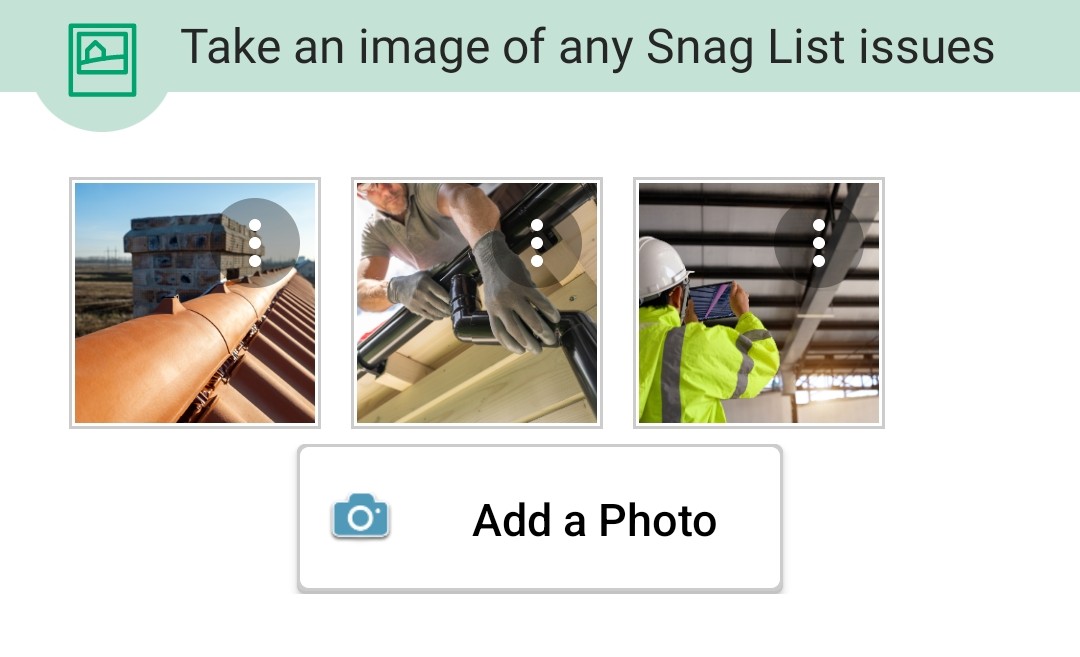
When you press the Add a Photo button, the camera will open and you will be able to take a picture.
If the Responder wishes to upload a photo from their device gallery, they should hold the button for about one second and then choose the Gallery option. They can then choose from the different gallery apps installed in the device. Some of these might also allow you to select multiple images.
Drawing on an Image #
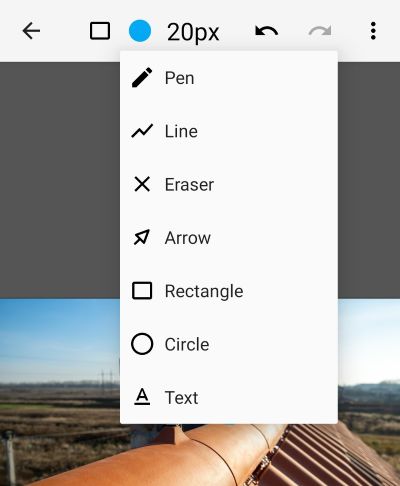
Within any of the images taken or uploaded from the device gallery, the responder has an option to draw over or make various annotations.
Examples include a Health and Safety Auditor being able to circle or arrow a trip hazard within an image. A builder can flag up issues along with text within a Punch List form.
The 3 dots icon button provides a dropdown menu where they can select Edit Image. This allows them to make these insertions directly onto the image with all of the standard drawing tools (the tools may differ slightly dependant on whether the device is Android or iOS).
Smart Image Scan with ChatGPT #
This feature lets you ask questions about images uploaded in your forms and get written answers automatically. When a photo is submitted, it can be sent to ChatGPT along with a question prompt you define, allowing the image to be read and described in text.
It’s useful when you want more than just visual proof. Instead of reviewing images manually, you can capture observations, checks, or summaries directly from the photo and store them as part of the form response.
Transcription #
It's really easy to set up within the component. Just follow these steps:
- Click the Smart Image Scan button within the image component settings.
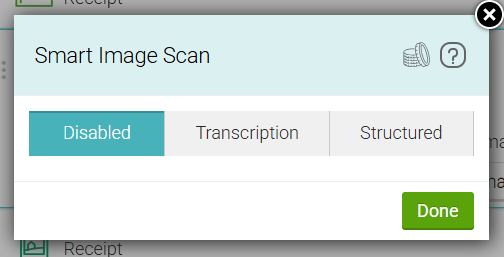
- Enable the Transcription option
- When setting the first time, you will be asked to use third party service approval.
- Custom Prompt - This is where you insert your question for the image.
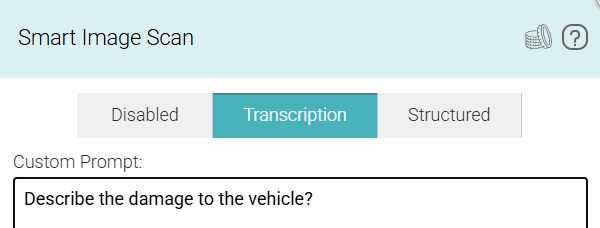
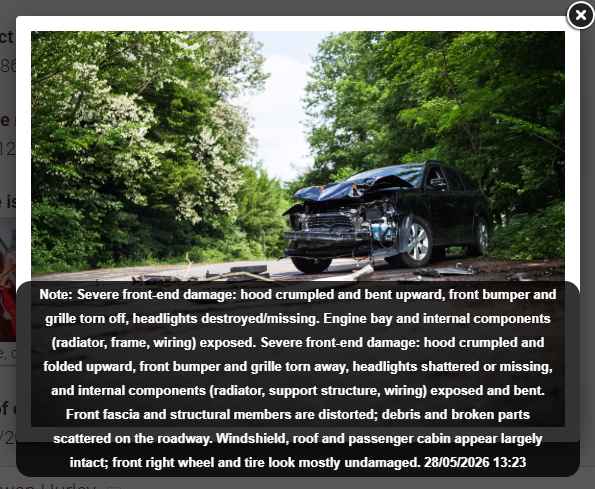
You can now see the ChatGPT descriptions within the image for specific forms on the responses page.
Structured image scanning #
What is Structured AI Image Content Reading?
Structured Image Content Reading allows ChatGPT to analyse an image and extract answers from the image that are defined within your form.
Unlike standard image transcription, where a single response is generated, structured mode fills individual text fields with separate answers.
Example Form Layout
When creating a structured image scan, it can either make up the entire form or be included as a section within a larger form. Below is a sample layout:
Image Component
- Take a photo of the receipt
- What is the total amount?
- Who issued the receipt?
- What is the receipt date?
- Itemise the purchased products.
When a responder photographs the receipt and submits the form, ChatGPT will analyse the image and populate the response text fields automatically.
How to Configure Structured AI Image Content Reading
Step 1 - Add an Image Component
Insert an Image component beneath the label.
Step 2 - Add Question Fields
Below the Image component, add a Text component for each question that you want ChatGPT to answer. If a response is expected to be a numerical value and you plan to use it in calculations, use a Number component instead of a Text component.
Examples:
- Total amount
- Issuer
- Receipt date
- Item description
Step 3 - Go back and enable Smart Image Scan
Open the Image component settings.
Select Structured.
Step 4 - Create Your AI Queries
For each question, enter the prompt that ChatGPT should use when analysing the image.
Examples:
- Scan the receipt and return the total amount.
- Identify the receipt issuer.
- Return the receipt date.
- List all purchased items.
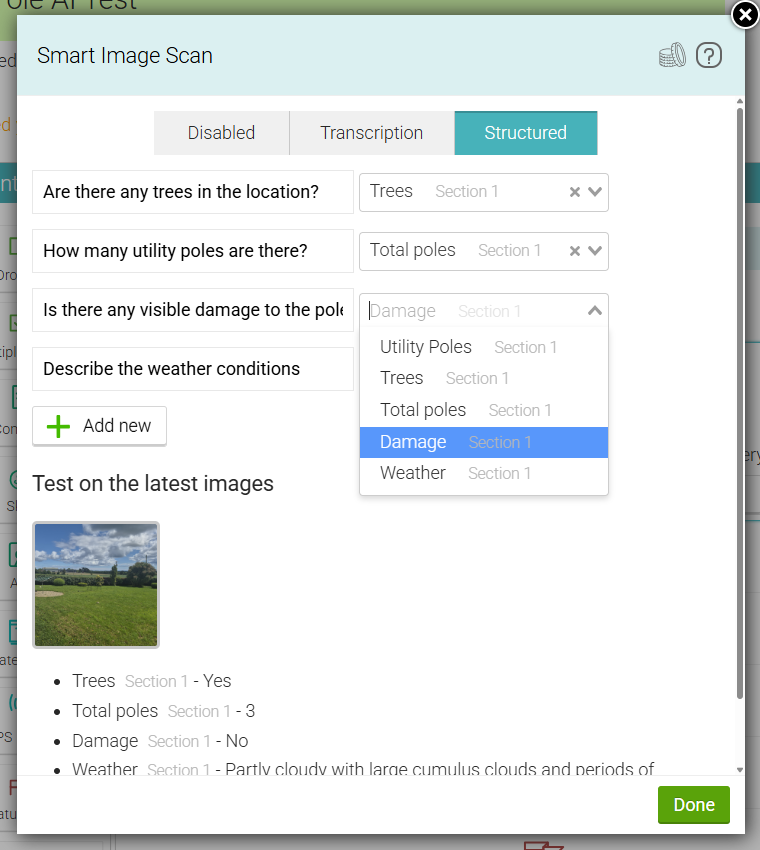
Step 5 - Link Questions to Form Fields
Beside each prompt is a Question to fill in the whispering box.
This whispering box displays the questions that you added to the form.
Select the corresponding Text component for each prompt so that AI knows which answer should be written into which field.
For example:
|
Prompt |
Question to fill in |
|
Scan the receipt for the total amount |
Total amount |
|
Identify the receipt issuer |
Issuer |
|
Return the receipt date |
Receipt date |
|
List all purchased items |
Item description |
If the Image question has already been used previously, the associated images will be displayed below. Simply click an image to view the AI-generated response instantly. This provides a quick way to test, validate, and refine your prompts without needing to submit new responses. You can return to this screen at any time to review and improve your setup.
Step 6 - Save and Test
Save the form and complete a test response.
Take a photo using the Image component and submit the form.
NestForms will analyse the image and automatically populate the linked Text components with the AI-generated answers.
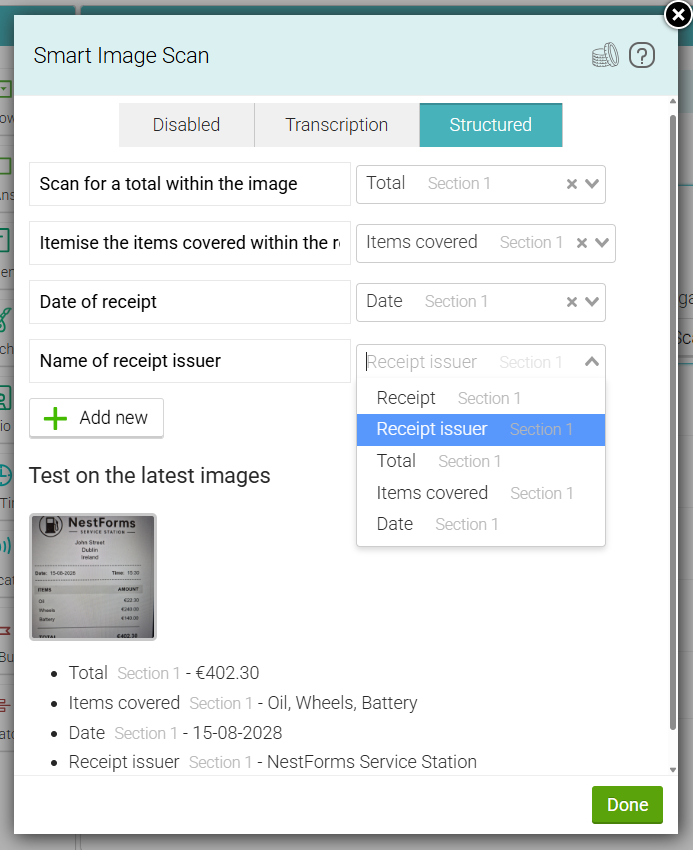
Have a look at a different example of how to set up a structure for scanning within the image: