


Workflow is used when a response needs review or approval before it can be completed.
In the Form builder click to Advanced Settings on the top left of the screen and select Workflow. A popup appears:
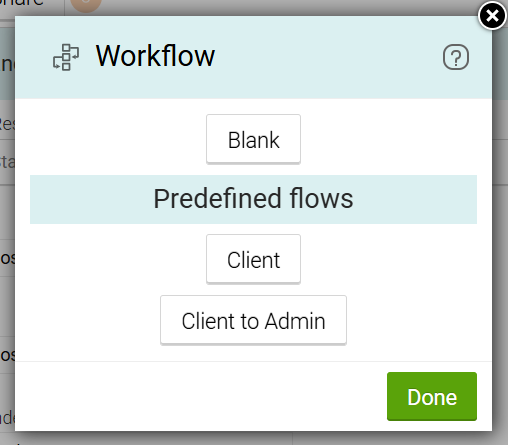
Note: At any point when creating a flow, if you run into any difficulties you can use the bin icon in the top right to go back to the start.

Workflow use scenarios #
- Blank
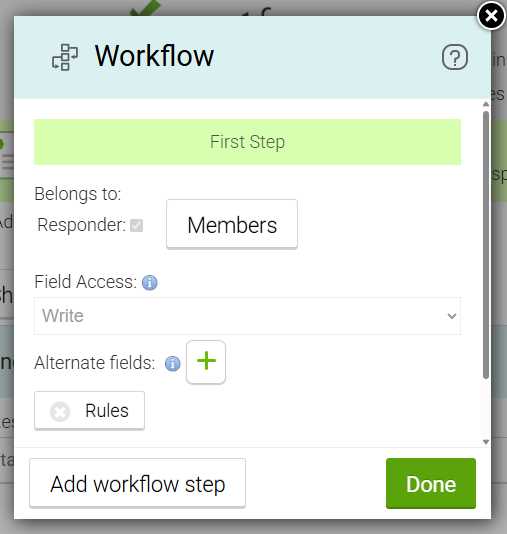
This is an empty or blank scenario where you can create your own flow stage according to your form requirements. Within this scenario you will see the following fields:
- Client
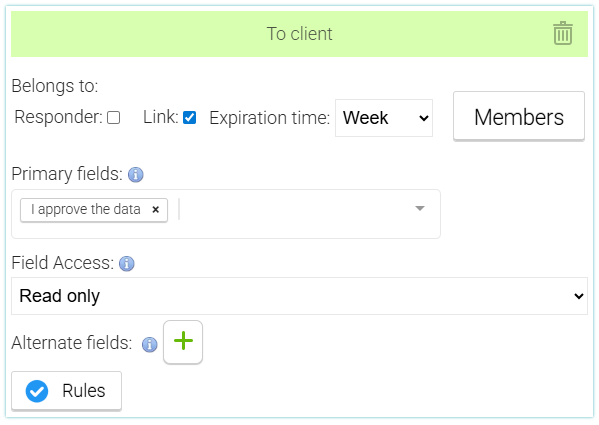
This is a predefined Workflow option that has already been prepared for you. The expectation is that the responder completes the response in the app and clicks Finish. An automated trigger email is then sent to the client using the email address entered in the response. The email contains a link that allows the client to review the submitted data. Once the client confirms the data, the response is marked as Finished.
- Client to admin
This works in a similar way to client flow, but includes a third stage where the response is approved by an administrator or trusted member of your team.
Detailed settings #
When editing, every flow stage has the following sections:
- Name - The name of the flow stage. Keep it short, as it will appear on the List page as the current response status.
- Belongs to: These settings define who has access to the response during this flow stage.
- Responder - If selected, the user who originally created the response will have access to it in this stage.
- Link - Creates a secure link that can be sent to a client or third party so they can review or complete fields without needing a NestForms account.
- Members - Allows you to select specific team members who will have access to the response during this stage.
- Primary fields - The fields that the user should complete within this flow stage. This section does not appear in the first flow stage, as those fields are completed by the original responder.
- Field Access - Defines whether all other fields are:
- Hidden - they are not displayed at all
- Read Only - the client can see them, but is not able to modify them
- Write - Client is able to change the values (eg fix typos and incorrect data entry)
- Alternate Fields - You can define other fields that will behave differently then the “Fields” and “Global other fields”. Eg if you want to have most of the fields as read only, but few fields to be updatable by the client, you can specify them here.
- Rules button - in simple flow stages, rules should not be required when setting up. But in more complicated flows, you can set rules that define to which stage the response should go when certain answers are processed in a specific way (eg when the client approves results, go to Final stage, but if does not approve the results, go to Error stage).
- Add Flow Stage - Adding a new flow stage.